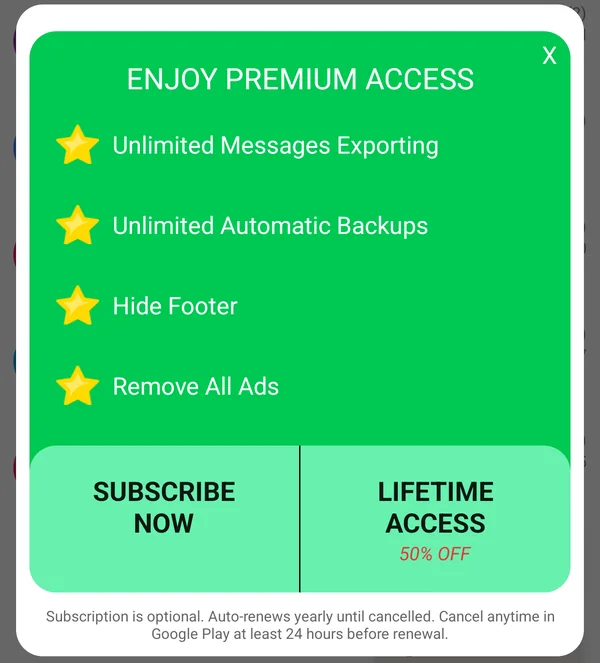
Premium removes the free version’s limits and ads. You can buy it as a subscription or as a one-time Lifetime Access purchase, by tapping the yellow crown icon at the top of the Chats screen. If something goes wrong while buying, or Premium doesn’t unlock after you paid, this guide will help.
The purchase fails or shows an error
- Payment declined, can’t be processed, or “not eligible”: this comes from Google Play, not from the app. Follow Google’s payment troubleshooting guide, or try a different payment method in Google Play.
- Google Play keeps failing, or you can’t pay through Google Play at all: contact support. We can arrange another way to pay.
I paid, but Premium is still locked
Most purchases unlock right away, but Google Play sometimes takes a while to confirm a payment, occasionally up to 24 hours. When Premium is active, the yellow crown disappears from the Chats screen. If you still see it, try these steps in order.
Step 1: Check your internet connection
The app needs a working Wi-Fi or mobile data connection to check your purchase with Google Play. Open any website to make sure you’re online.
Step 2: Check that the payment went through
Open your Google Play order history, or in the Play Store app tap your profile picture, then Payments & subscriptions > Budget & history. Find the SMS Backup, Print & Restore purchase. If it is pending or declined, the upgrade won’t unlock until Google completes the payment.
Step 3: Make sure you’re using the Google account that paid
Premium belongs to the Google account used for the purchase. If your phone has more than one Google account, open the Play Store, tap your profile picture and switch to the account that paid. See Restore Your Premium/Lifetime Purchase for details.
Step 4: Restart the app
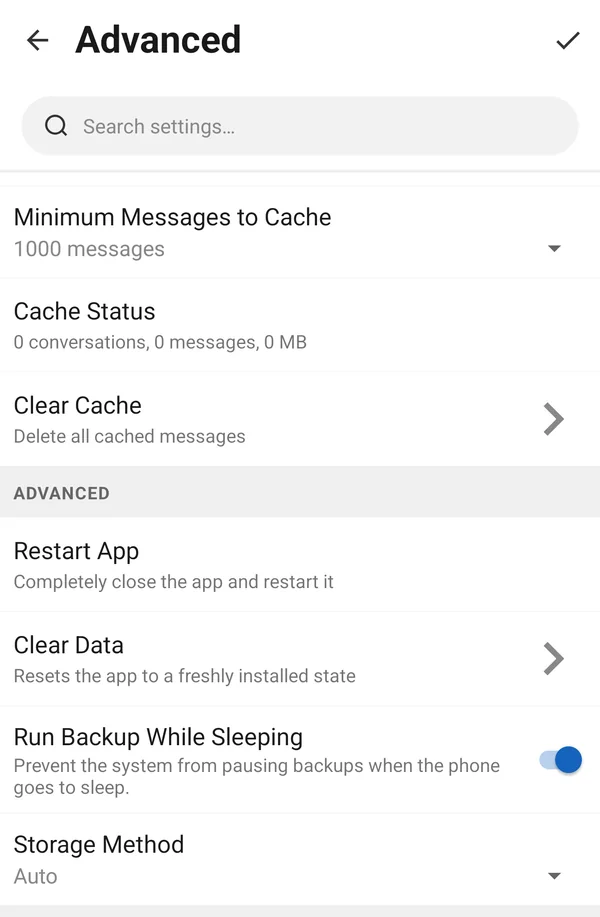
On the Chats screen, tap the Customize icon (the sliders at the top), open Advanced, scroll down and tap Restart App.
Step 5: Restart the phone
Hold the power button, tap Restart, and open the app again when the phone is back on.
Step 6: Update Google Play
Purchases work best with the latest Play Store. In the Play Store app, tap your profile picture, then Settings > About > Update Play Store.
Step 7: Check the date and time
A wrong date or time can stop Google Play from confirming purchases. Open Android Settings, search for Date & time, and turn on Set time automatically and Set time zone automatically.
Installing the app again, or on a new phone
You don’t need to pay again. Install the app from Google Play using the same Google account you bought Premium with, and it unlocks automatically. To check which account the Play Store is using, open the Play Store and tap your profile picture at the top right. You can switch accounts there.
Contact support
If none of the steps help, we’ll sort it out with you. Please have your Google Play order number ready (it starts with GPA. and is in your Google Play receipt email).
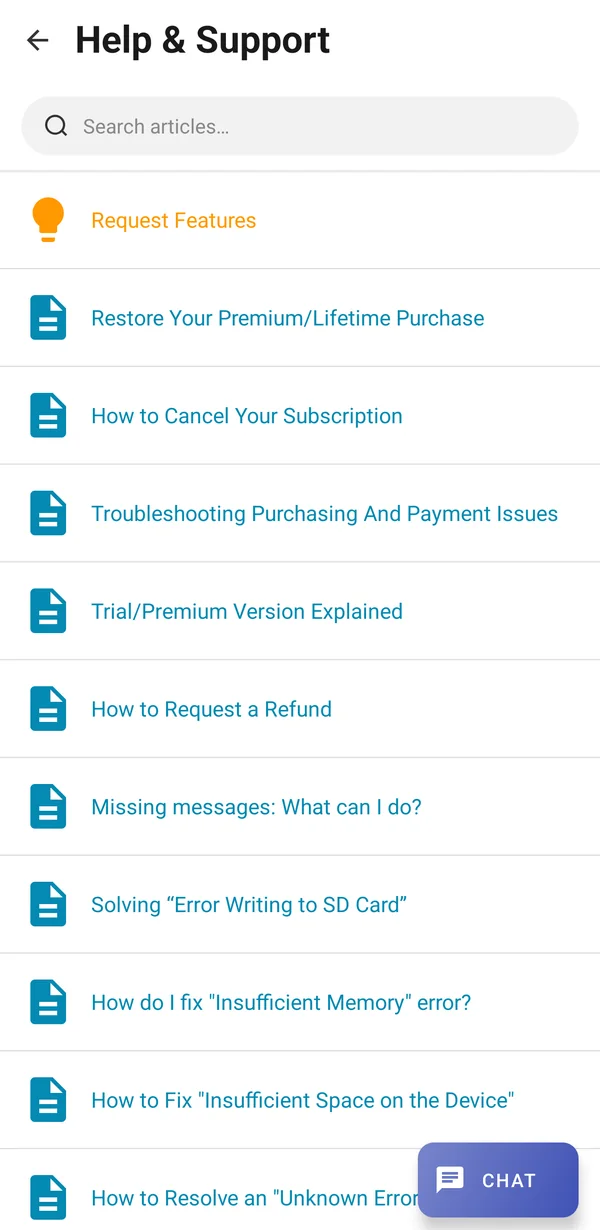
- On the Chats screen, tap the three-dot menu (⋮) and tap Help & Support.
- Tap Chat at the bottom right.