This article may help if:
- Your SD card worked normally until now, and
- Suddenly the app can’t save backups to it, sometimes with a message that the card is read-only.
This usually doesn’t mean the card is broken, and you don’t need to format or replace it.
What’s going on?
This is a common Android problem. When the SD card’s file system has a small error, Android protects the card by switching it to read-only. Unmounting and mounting the card again in Settings usually doesn’t help.
Solution 1: Restart with the card removed
- Turn off your phone.
- Remove the SD card.
- Turn the phone on, then turn it off again.
- Put the SD card back in.
- Turn the phone on.
This quick reset often fixes the problem.
Solution 2: Repair the card on a computer
You’ll need an SD card reader (many laptops have one, or use a small USB card reader). Connecting the phone by USB is not enough, because Windows can’t repair a card while it is inside the phone.
- Turn off the phone, remove the SD card and put it in the card reader.
- On a Windows PC, open File Explorer and find the SD card under This PC.
- Right-click the card and choose Properties.
- Open the Tools tab and click Check under Error checking.
- Click Scan and repair drive and wait for it to finish.
- Eject the card safely and put it back in the phone.
The repair does not delete your files. On a Mac, use Disk Utility > First Aid instead.
Solution 3: Save backups to the phone’s internal storage
If the card is still read-only, save backups to internal storage for now:
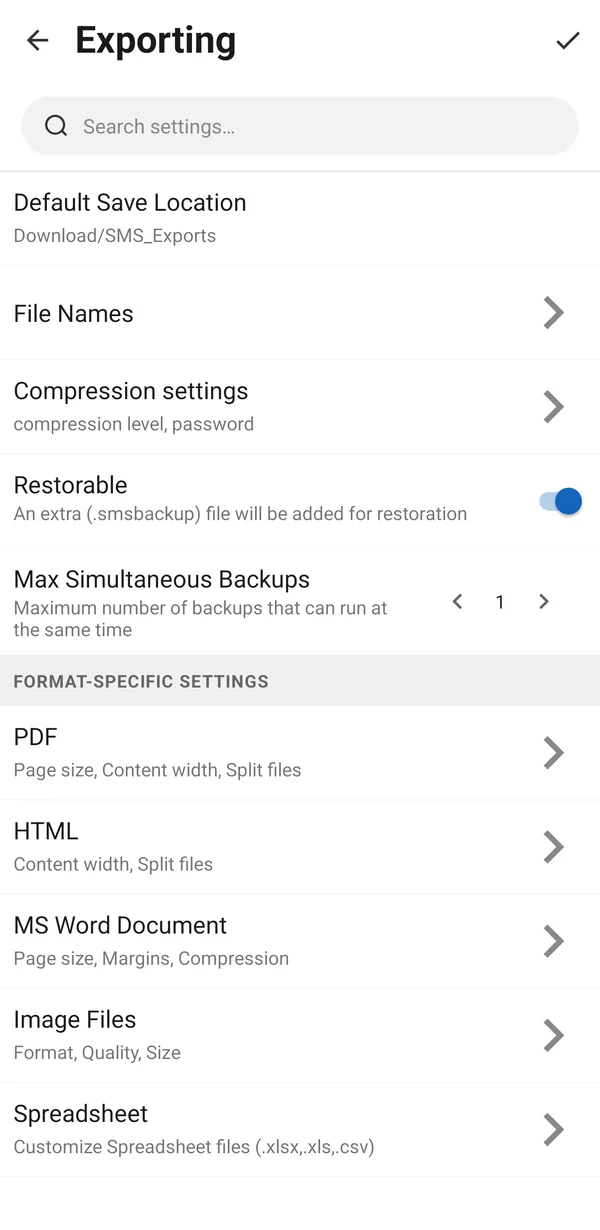
- On the Chats screen, tap the Customize icon (the sliders at the top).
- Open Exporting and tap Default Save Location.
- Choose a folder in internal storage, for example Download.
Still not working?
Contact us through the support chat: tap the three-dot menu (⋮) on the Chats screen, then Help & Support, then Chat. We’ll help you find the best solution.