This error means your phone doesn’t have enough free storage to save the backup. Free up some space and run the backup again.
Delete old backups from the app
Old backups, especially ones with photos and videos, can take up a lot of space. You can delete them from inside the app:
- On the Chats screen, tap the folder icon at the top.
- Open your save folder (for example SMS_Exports). Each backup is a folder named after the conversation or the date.
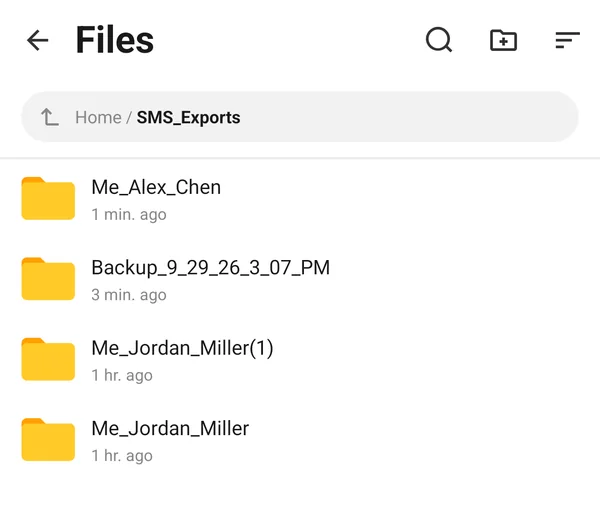
- Long-press a backup you no longer need, then tap any others to select them too.
- Tap Actions and then Delete.
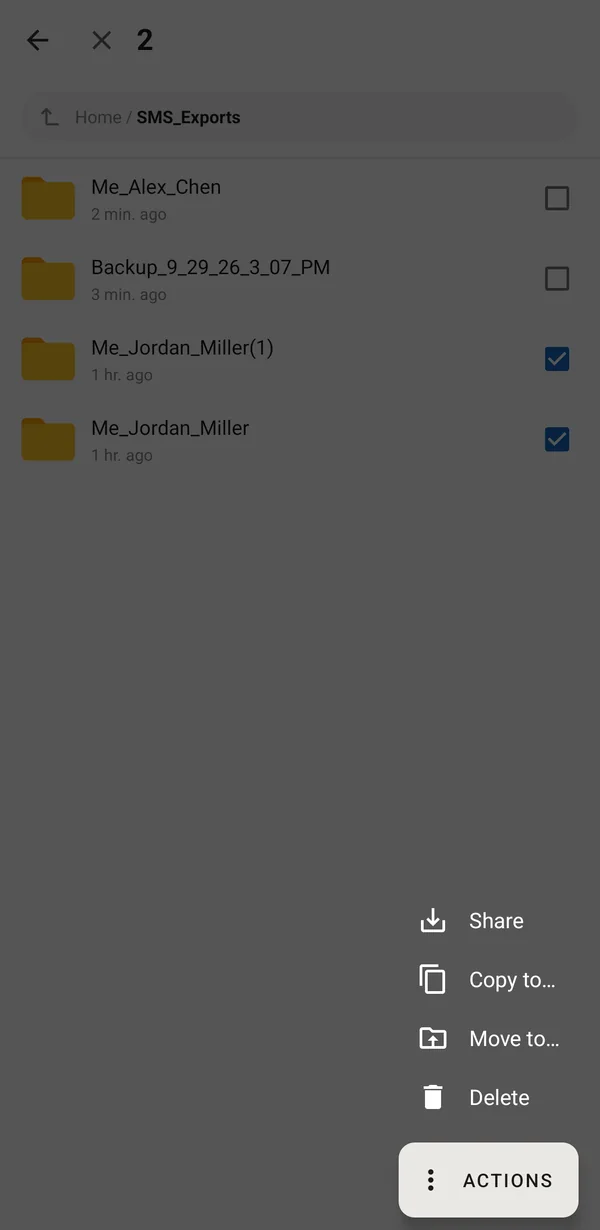
Want to keep an old backup but not on the phone? Use Actions > Share to save it to Google Drive or send it to yourself first, then delete it from the phone.
Free up space on the phone
- Open Android Settings > Storage to see what is using the space. Many phones also offer a Free up space button there.
- Remove apps you don’t use, and clear large downloads from the Downloads folder.
- Back up photos and videos to the cloud (for example Google Photos), then remove the copies from the phone.
Make the backup smaller
- In the Select Format dialog, under Advanced Options, turn off Add original media files if you don’t need separate copies of every photo and video.
- Back up fewer conversations at a time, or only the dates you need (open a conversation and use Selection > Select By Date).
Was this article helpful?
Thanks for your feedback!