Moving to a new Android phone? SMS Backup, Print & Restore can carry your SMS and MMS conversations over. You make a backup on the old phone and restore it on the new one.
Step 1: Back up on your old phone
- Open the app on your old phone.
- Select the conversations you want to move. Long-press one conversation, then tap the others, or use Selection and Select All.
- Tap New Backup and choose a format. Any format works for moving messages, as long as Make it restorable is turned on under Advanced Options.
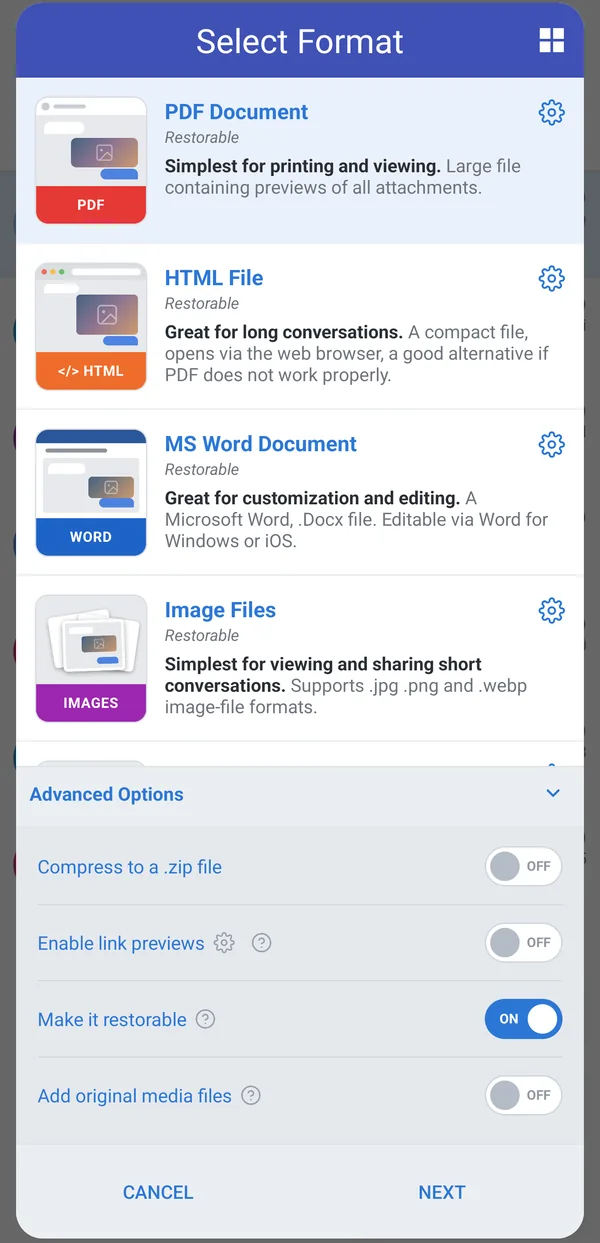
The finished backup includes a .smsbackup file. This is the file the app restores from. The PDF or other document next to it is for reading and printing only.
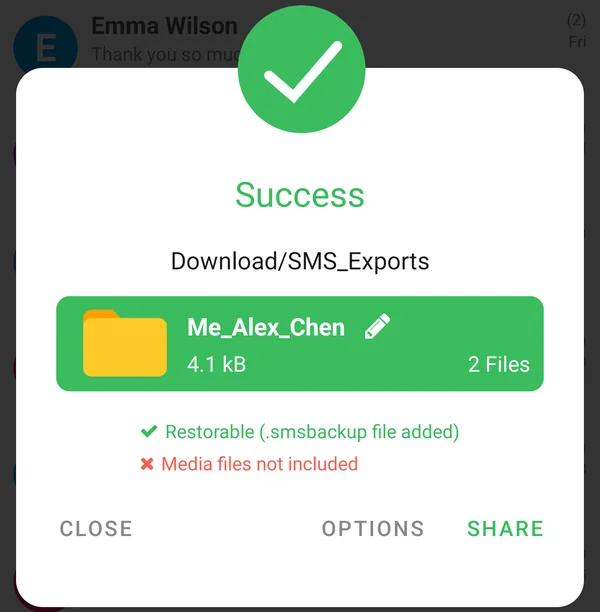
Step 2: Get the backup to the new phone
Tap Share and save the backup to Google Drive, or email it to yourself. You can also copy the backup folder to the new phone with a USB cable. The app can restore directly from Google Drive, Dropbox and OneDrive, so you don't need to download the file first.
Step 3: Restore on the new phone
- Install SMS Backup, Print & Restore from Google Play on the new phone.
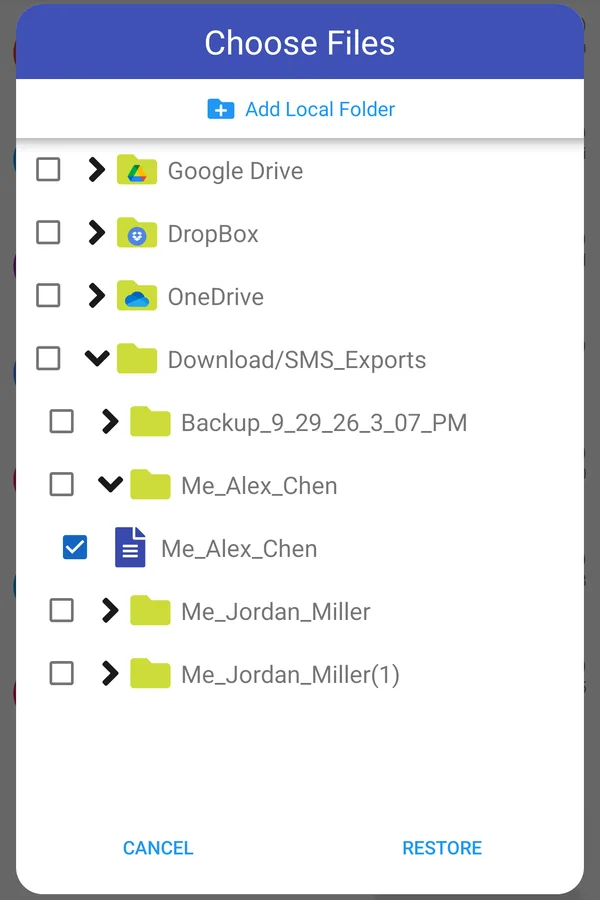
- Tap Restore on the Chats screen.
- Find your backup: open Google Drive, DropBox or OneDrive, or tap Add Local Folder to pick the folder on the phone. Check the backup and tap Restore.
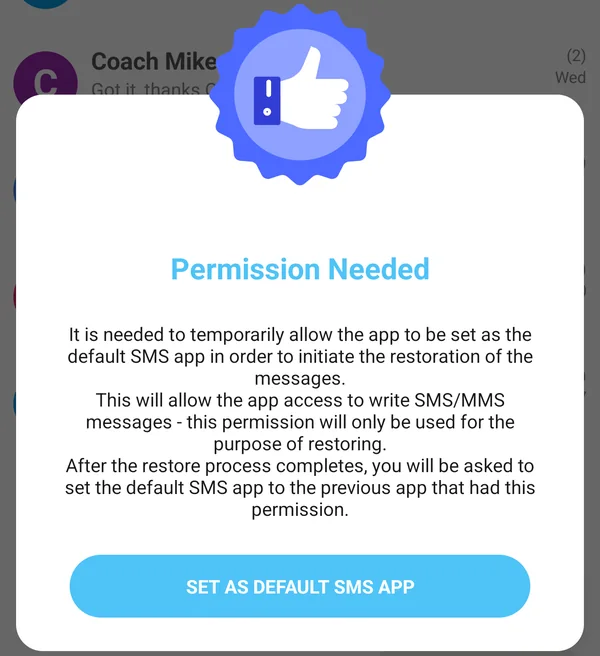
- Android only lets the default SMS app write messages, so the app asks to become the default SMS app for the restore. Tap Set as default SMS app and confirm.
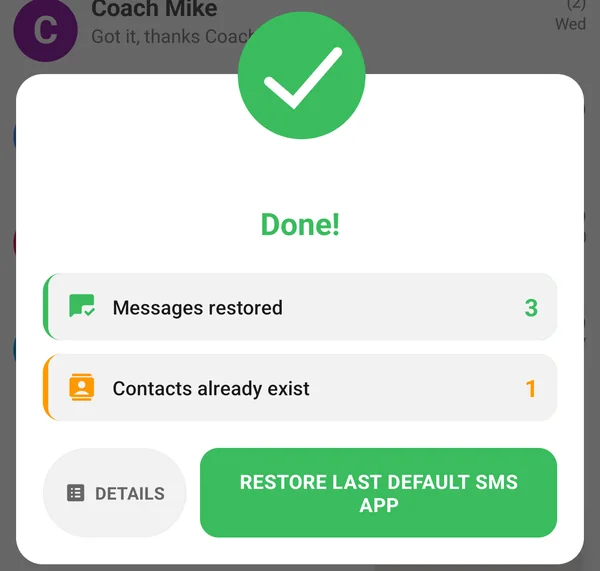
- Wait for the restore to finish. You'll see how many messages were restored. Tap Restore last default SMS app to switch back to your usual messaging app, then open it: your conversations are there.
Good to know
- Your Premium purchase moves with you. Premium belongs to your Google account, not to the phone. Use the same Google account on the new phone and it unlocks automatically. See Restore Your Premium/Lifetime Purchase if it doesn't.
- Restoring is free. You don't need Premium to restore a backup.
- Messages that are already on the phone are skipped, so restoring the same backup twice doesn't create duplicates.
- RCS ("chat") messages are restored as MMS by default (Restore RCS to MMS in Customize > Advanced), because Android doesn't let other apps write RCS messages.
- Moving between Android phones works with any manufacturer. Moving to an iPhone is not possible, because iOS does not let apps write text messages.
Was this article helpful?
Thanks for your feedback!