If you are in a divorce, custody, harassment, landlord or employment case, your text messages may be some of your most important evidence. This guide explains how to turn an Android conversation into a clear, complete printout or PDF that a lawyer, mediator or judge can actually use, with a free method and an app method.
This guide is general information, not legal advice. Court rules differ between countries, states and even individual judges. Always ask your attorney, or the court clerk if you are representing yourself, what format they want.
Why screenshots often aren't enough
Screenshots are the most common way people save texts, and they are also the easiest to challenge:
- They are selective. A handful of screenshots shows only the parts one side chose, and the other side can argue that the context was left out.
- They often hide the details that matter. Many messaging apps show only a contact name, not the phone number, and show times only every few messages, sometimes without the date.
- They are hard to follow. Forty screenshots of a long conversation, out of order and without page numbers, are hard for anyone to review or refer to in a hearing.
What a good printout shows
Whatever method you use, check that your printout or PDF includes:
- The other person's name and phone number, so there is no question about who sent the messages.
- The full date and time of every message, not just "Yesterday" or "10:42".
- Who sent each message, clearly marked as you or the other person.
- The whole conversation for the relevant period, including messages that don't help you. Complete records are more credible.
- Pictures, videos and voice messages that were part of the conversation, shown in place or listed.
- Page numbers, and ideally a number on each message, so everyone can point to "page 14" or "message 212" in a meeting or hearing.
Method 1 (free): Print from Google Messages for web
If you use Google Messages, you can print a conversation from a computer at no cost:
- On a computer, open messages.google.com/web and pair it with your phone by scanning the QR code.
- Open the conversation and scroll up until every message you need has loaded.
- Press Ctrl+P (or Cmd+P on a Mac) and print, or choose "Save as PDF".
This works for short conversations. The limitations: the browser only prints what has loaded on screen, long conversations often get cut off or split awkwardly, times and dates are not shown on every message, phone numbers usually don't appear, and there are no page numbers. Check the result carefully before you rely on it.
Method 2: Export a court-ready PDF with SMS Backup, Print & Restore
SMS Backup, Print & Restore is an Android app that turns a text conversation into a document. It works on the phone itself, with no computer needed, and your messages are processed on the device and not uploaded anywhere.
Step 1: Open the conversation
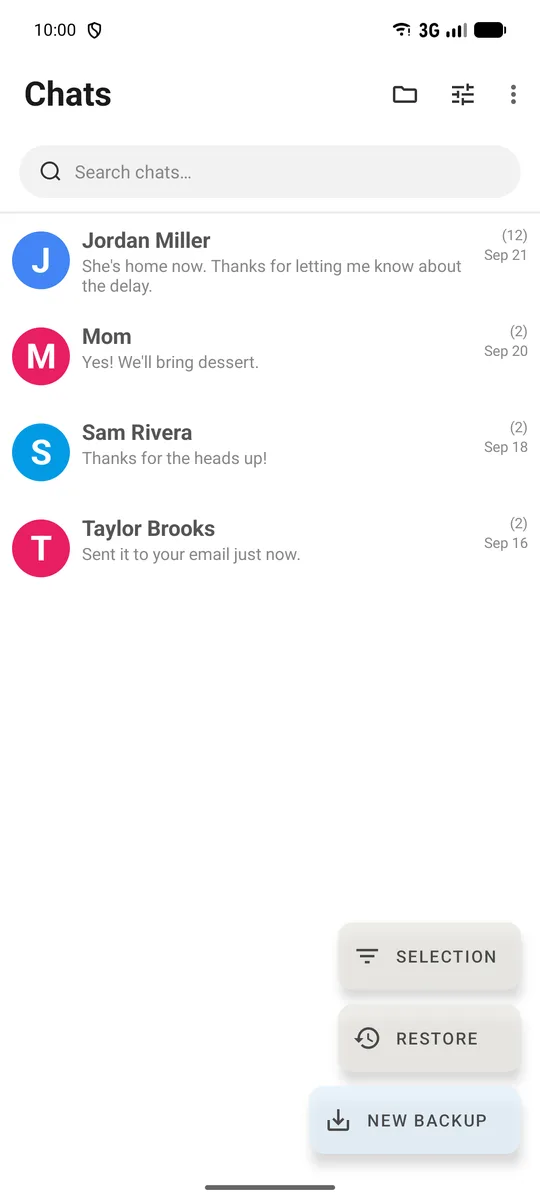
Install the app from Google Play, allow it to read your messages, and tap the conversation you need.
Step 2: Choose the dates (optional)
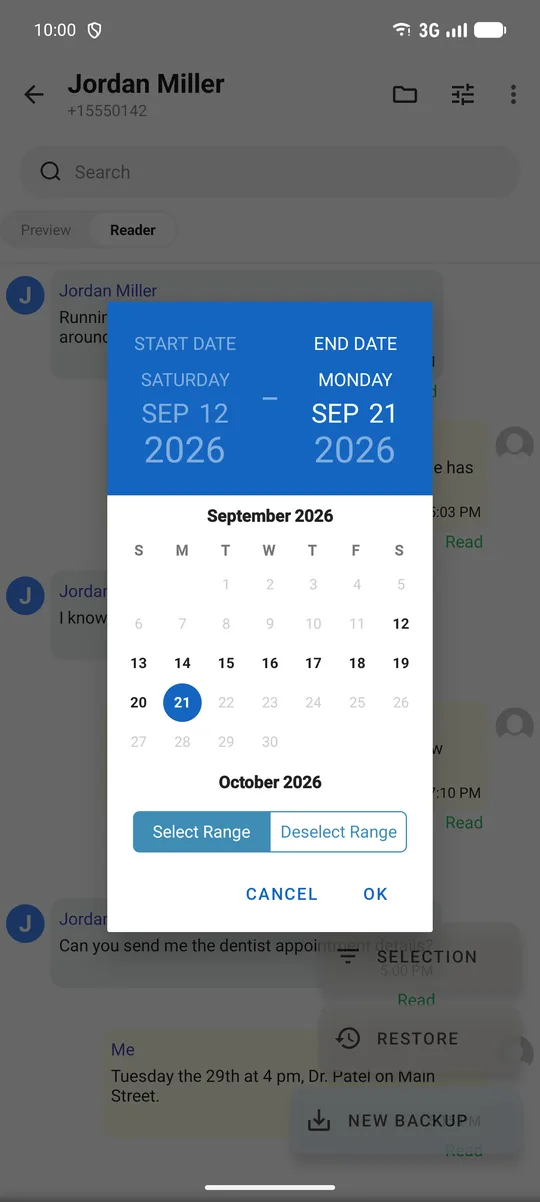
To export only part of a long conversation, tap Selection, then Select By Date, and pick the start and end dates. To export everything, use Selection and Select All, or simply skip this step.
Step 3: Tap New Backup and choose PDF
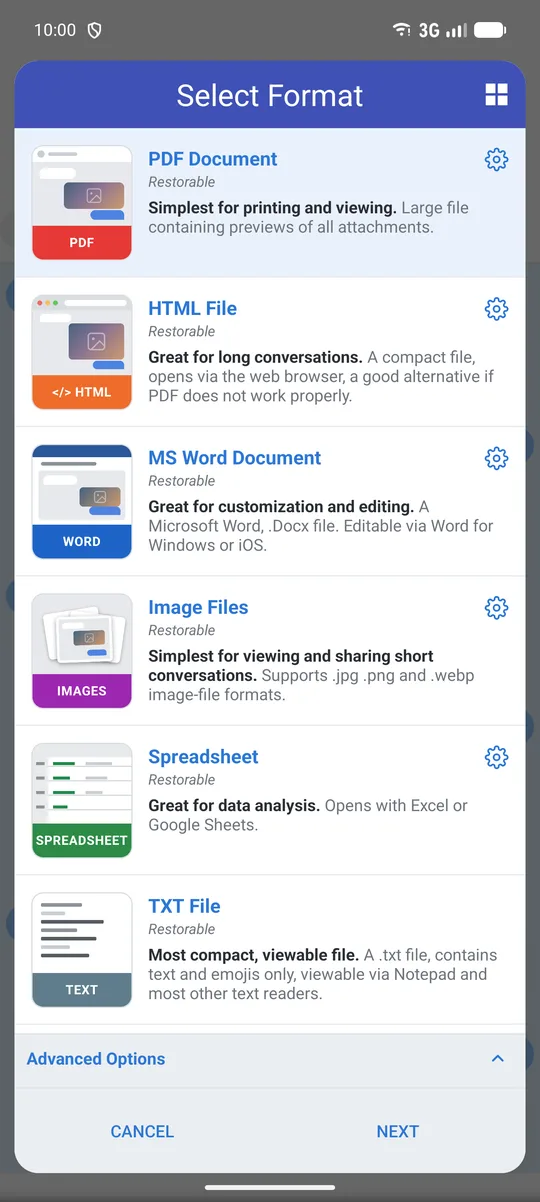
Tap New Backup, choose PDF Document and tap Next. Word, HTML, Excel and plain text are also available if your lawyer prefers them. The first time, the app asks which folder to save to.
Step 4: Print or share it
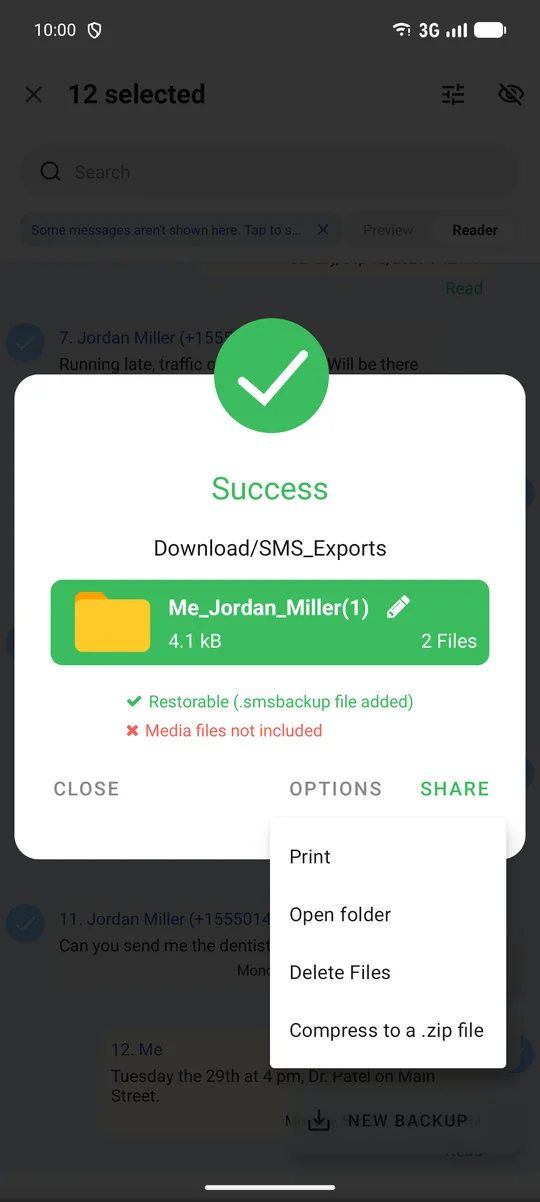
When the export finishes, tap Share to send the file by email or save it to Google Drive, or tap Options and then Print to print straight from the phone.
Recommended settings for court
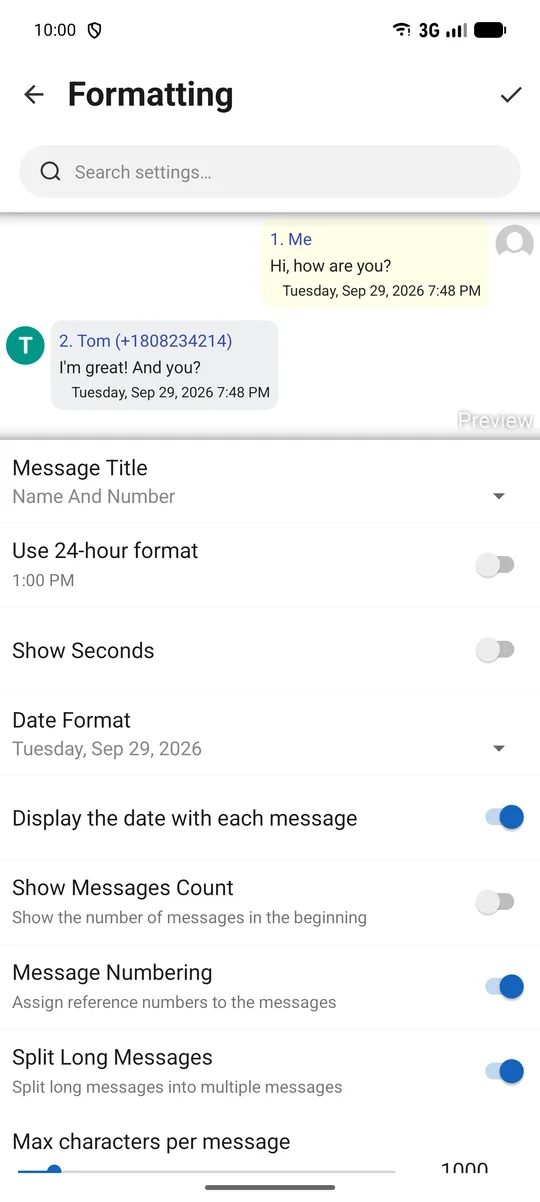
Before exporting, open Customize (the sliders icon at the top), then Formatting, and set:
- Message Title: Name And Number, so every message shows the sender's name and phone number.
- Display the date with each message, so every message carries its full date, not just a time.
- Message Numbering, which gives each message a reference number.
Tap the check mark to save. The preview at the top of the screen shows the result as you change settings.
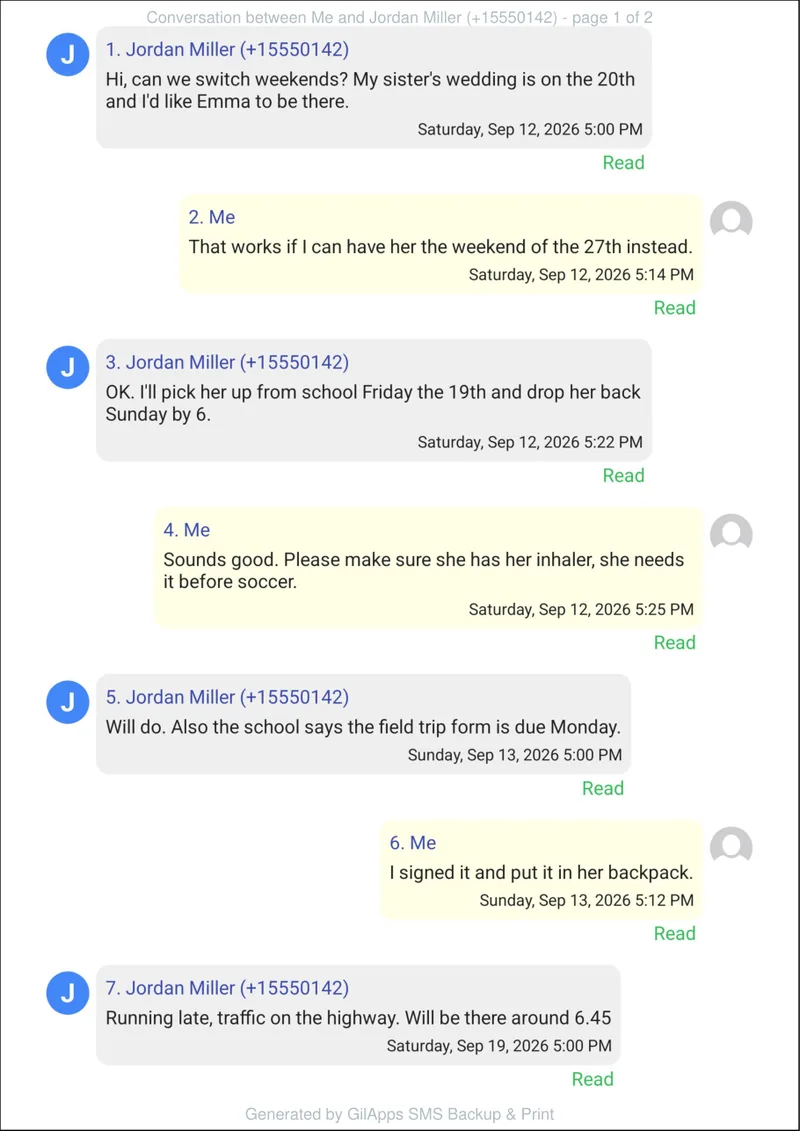
Here is what an exported page looks like with these settings. Each message is numbered and shows who sent it, their phone number and the full date and time, and the page header shows the page count.
Other useful options:
- Pictures in the conversation appear in place in the PDF, next to the messages they were sent with.
- Protect With Password encrypts the PDF before you email it. A password-protected PDF can't be printed directly from the app, so print an unprotected copy if you need paper.
- Transcription (under Content Enhancements) converts voice messages to text on the device, and the transcript appears in the export next to the voice message.
- Very long conversations can be split into several files automatically, so a thread with years of messages stays manageable.
The free version has a limit on the number of messages per export, which is enough for many short conversations. Premium removes the limit.
Keep the originals
A printout is a copy. The original messages are still the best evidence, so:
- Don't delete the conversation, even after you've printed it, and don't reset or trade in the phone until your case is over.
- Keep a backup. Each export also saves a restorable .smsbackup file next to the PDF, which can put the messages back on a phone later. Keep a copy of the folder in a second place, such as Google Drive.
- Write down how you made the copy: the date you exported it, the method and the phone. If anyone asks how the printout was produced, you can explain it simply.
- Be ready to show the phone. Your lawyer may ask you to bring it so the messages can be compared with the printout.
Missing messages? Check for RCS
End-to-end encrypted "chat" messages (RCS) in Google Messages are hidden from all other apps on the phone. The app's free Messages Companion Chrome extension syncs those chats in from Google Messages for web, so they appear in the app and in your exports. See Missing messages: What can I do? for the setup steps.
Quick checklist
- Other person's name and phone number are shown
- Every message has a full date and time
- The whole relevant period is included, not just selected messages
- Pictures and attachments are included
- Pages (and ideally messages) are numbered
- Original conversation is still on the phone, plus a backup copy
- A note of when and how the printout was made
Questions about exporting your messages? Contact us through the support page and we'll help.