Android gives every app a limited amount of memory. Creating one very large file, such as a PDF of a conversation with thousands of messages and pictures, can go over that limit and end with an “Insufficient memory” error. Try the fixes below in order.
1. Turn off link previews
Link previews add a picture and title for every web link in your messages. In long conversations with many links they use a lot of memory, and turning them off is the most effective fix.
- Select your conversations and tap New Backup.
- In the Select Format dialog, open Advanced Options and turn off Enable link previews.
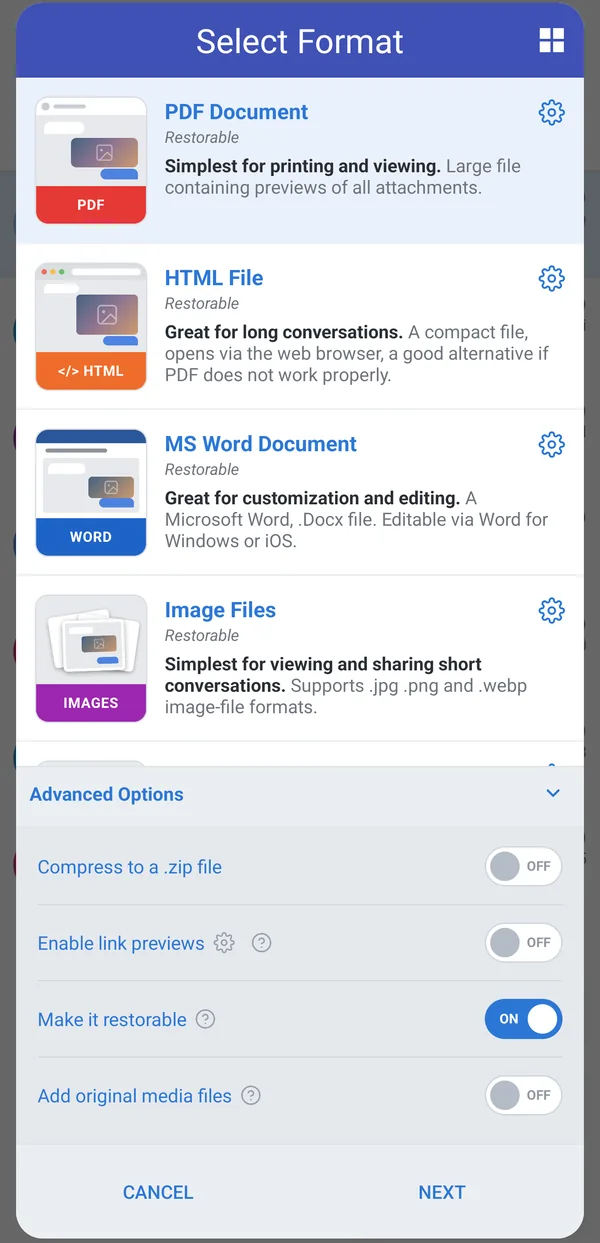
If you want to keep link previews, lower their memory use instead: tap the small gear next to Enable link previews (or go to Customize > Content Enhancements > Link Previews), tap Cache Size, and set the memory cache to 0.
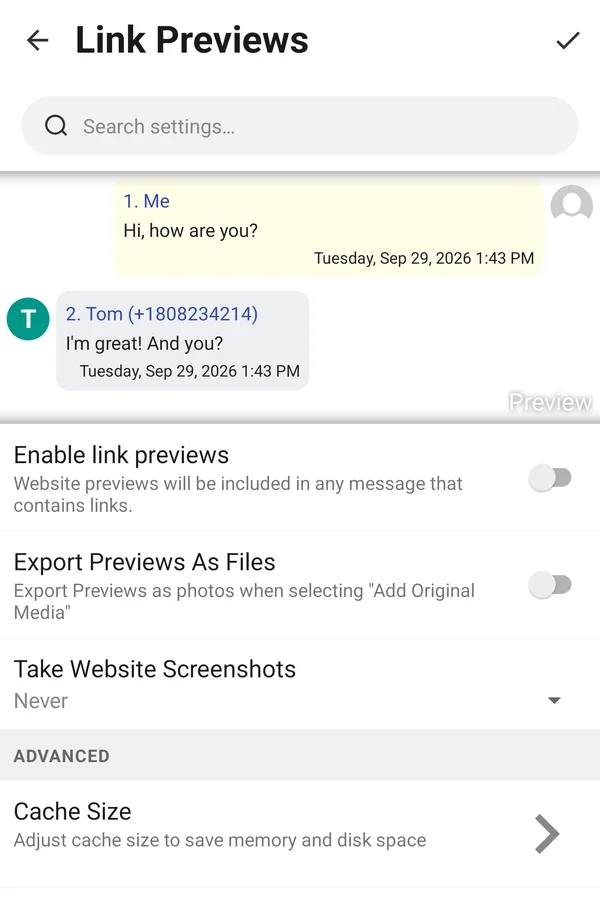
📱 Open Link Previews settings in the app
2. Split the export into several files
Smaller files need less memory. In the Select Format dialog, tap the gear icon next to the format you use, turn on Split Files, and choose how to split:
- Split by number of messages, then lower Max messages per file (for example to 500).
- Split by number of characters, which works better when some messages are very long.
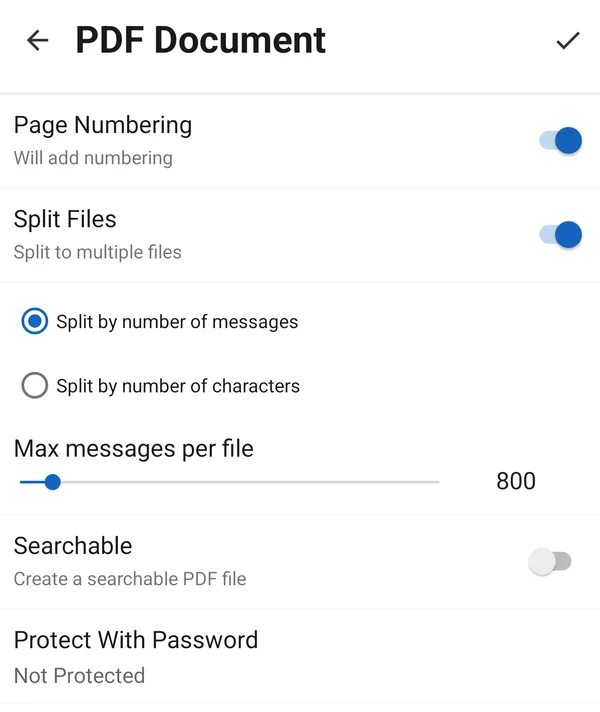
Split Files is available for PDF, HTML and MS Word. For Image Files, use the gear to limit the size of each image instead.
3. Choose a lighter format
- HTML is compact and handles very long conversations well. You can open it in any web browser and print it or save it as PDF from there.
- If you need a PDF, turn on Searchable in the PDF settings (shown above). It builds the PDF in a different way that uses less memory.
- If PDF and HTML both fail, try Image Files. It takes longer, but it rarely runs out of memory.
4. Restart the app and try again
After changing settings, fully restart the app so it starts with free memory: open Customize > Advanced and tap Restart App.
Still not working?
Contact us through the support chat: on the Chats screen tap the three-dot menu (⋮), then Help & Support, then Chat. Let us know the format you used and roughly how many messages you are exporting.