SMS Backup, Print & Restore saves your conversations to a backup file on your phone. This guide shows how to create a backup and then send it to yourself by email, save it to Google Drive, or copy it to a computer.
Step 1: Select the conversations
- Open SMS Backup, Print & Restore.
- Long-press a conversation to start selecting, then tap any other conversations you want to include. To back up only some messages, open a conversation instead and select the messages inside it.
- Tap New Backup at the bottom right.
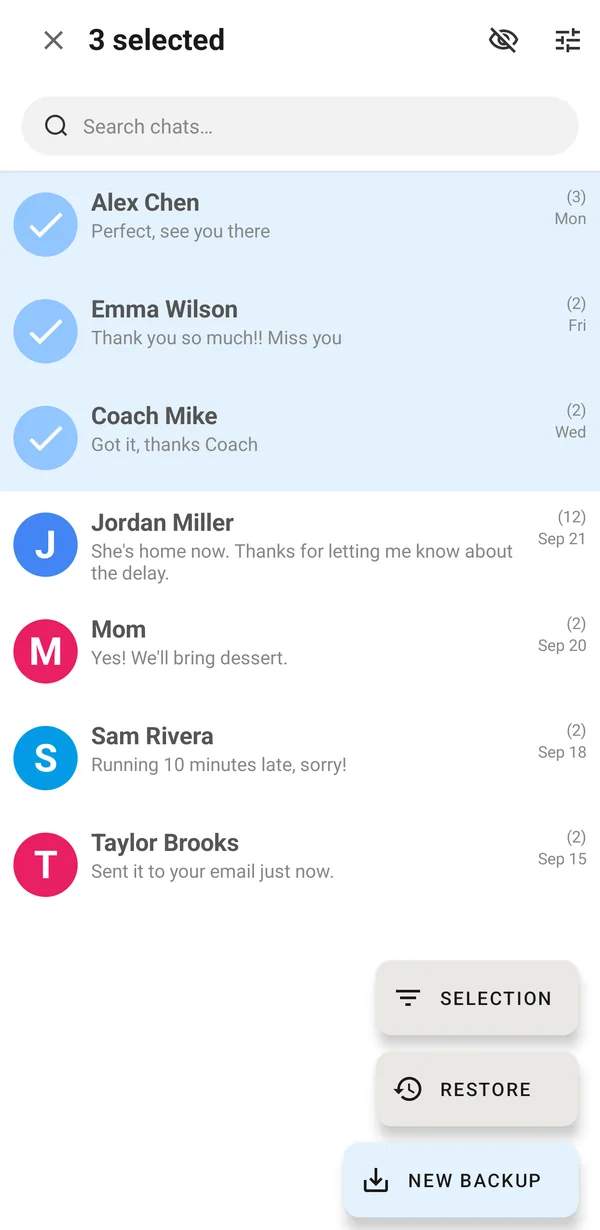
Step 2: Choose a format
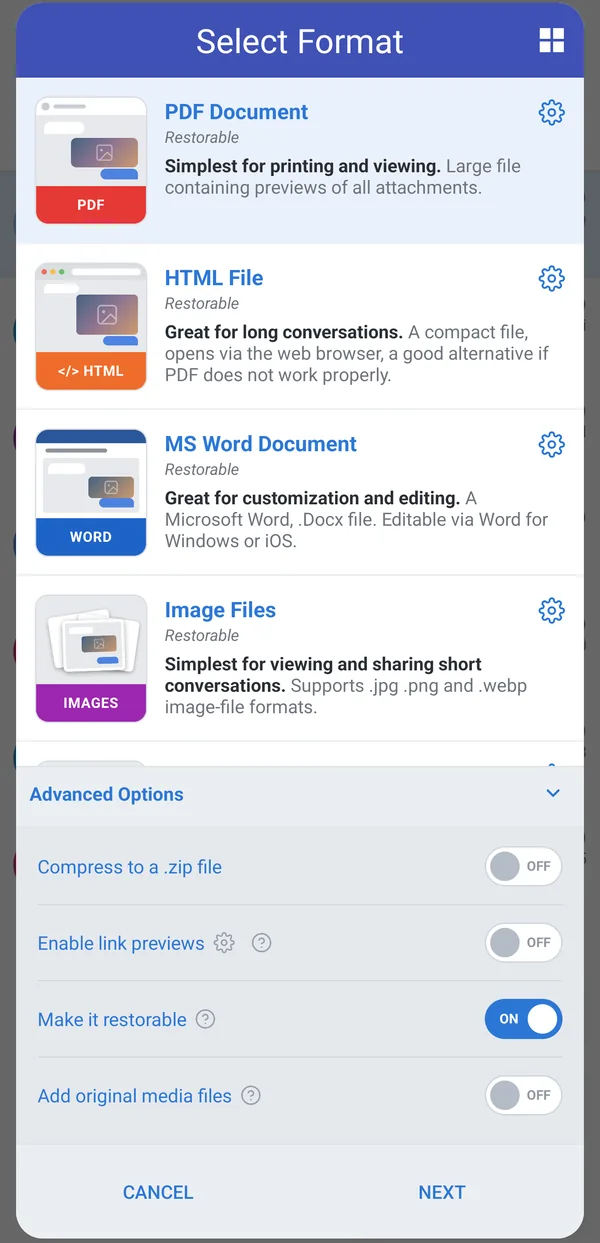
Pick the format you want, for example PDF Document for reading and printing, then tap Next. Under Advanced Options, keep Make it restorable turned on if you may want to put the messages back on a phone later. It adds a .smsbackup file next to your document. Turn on Add original media files if you also want the photos and videos as separate files.
The first time, the app asks you to choose a folder to save backups in.
Step 3: Share or save the backup
When the backup is ready, tap Share.
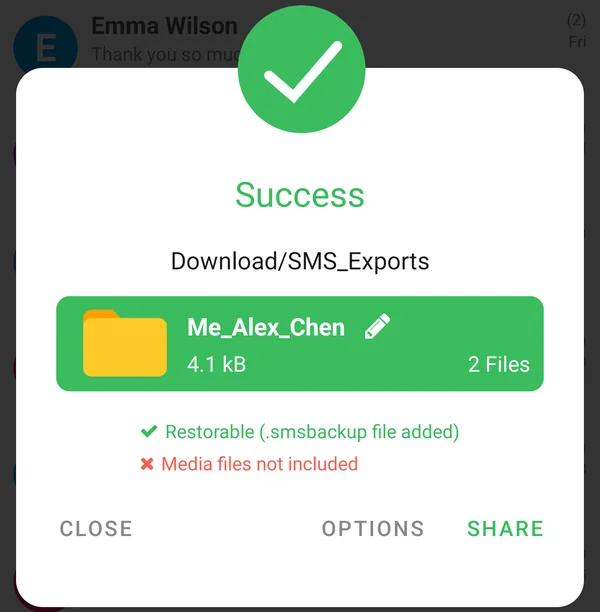
Android's share menu opens with the backup files attached. Choose where to send them:
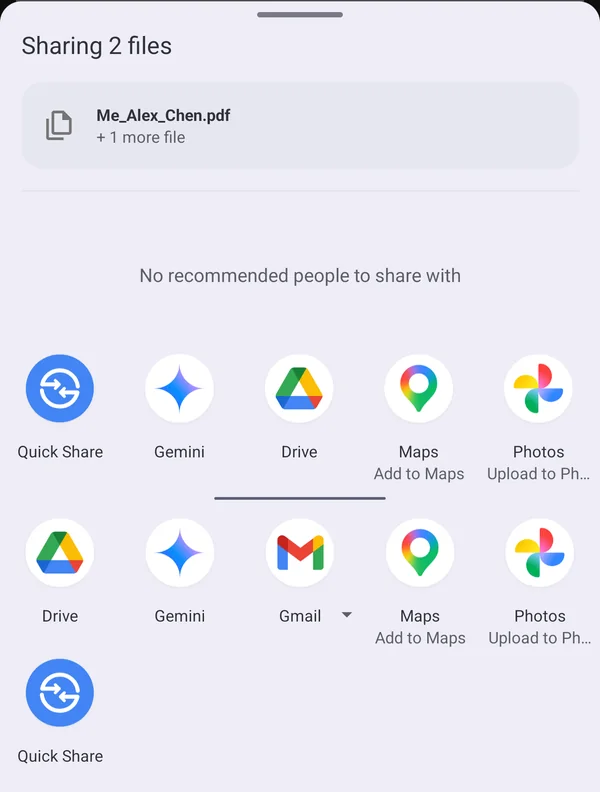
- Email: tap Gmail (or your email app). A new email opens with the files attached. Send it to yourself so you can download the files on any device.
- Google Drive: tap Drive, choose the folder and tap Upload.
- Computer: connect your phone to the computer with a USB cable, allow file transfer on the phone, and copy the backup folder from the save folder you chose in Step 2 (for example Download/SMS_Exports).
You can share an older backup at any time. Tap the folder icon at the top of the Chats screen, long-press the backup, tap Actions and then Share.
Tips
- Keep backups private. Backup files contain your messages. Store them in an account only you can access.
- Use Wi-Fi for large backups. Uploading or emailing big files is more reliable on Wi-Fi. Email services usually limit attachments to about 25 MB, so use Google Drive for larger backups.
- Want backups to happen by themselves? Use Automatic Backups in the three-dot menu to save a backup to Google Drive, Dropbox or OneDrive on a schedule.